


首先我们需要准备一台服务器,推荐大宽带。
推荐阿里云,腾讯云大厂子也可以试试我的首页 – 服务器销售
NPS官方文档https://ehang-io.github.io/nps/#/
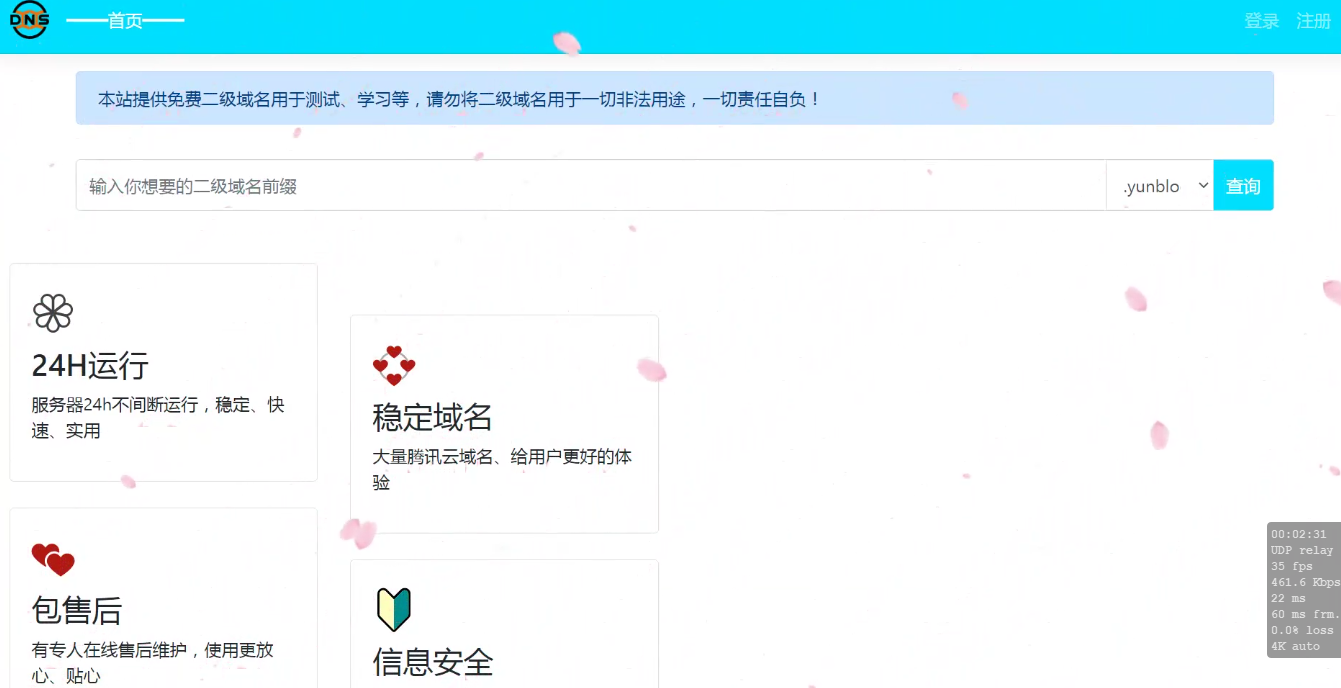
然后连接工具FinalShell官网
![图片[1]-NPS搭建教程-干净博客](https://tuchuang.org.cn/imgs/2026/03/03/a5ca7e0fc0bff0e5.png)
![图片[2]-NPS搭建教程-干净博客](https://tuchuang.org.cn/imgs/2026/03/03/fff87be2e34f37ee.png)
![图片[3]-NPS搭建教程-干净博客](https://tuchuang.org.cn/imgs/2026/03/03/4f70d37672f4b7c5.png)
![图片[4]-NPS搭建教程-干净博客](https://tuchuang.org.cn/imgs/2026/03/03/ad2e80321ba71a5e.png)
mkdir -p /root/nps && cd /root/nps![图片[5]-NPS搭建教程-干净博客](https://tuchuang.org.cn/imgs/2026/03/03/3bed7d5d05edb430.png)
wget https://github.com/yisier/nps/releases/download/v0.26.19/linux_amd64_server.tar.gz![图片[6]-NPS搭建教程-干净博客](https://tuchuang.org.cn/imgs/2026/03/03/95aaa2cecab8a1af.png)
tar -zxvf linux_amd64_server.tar.gz![图片[7]-NPS搭建教程-干净博客](https://tuchuang.org.cn/imgs/2026/03/03/1b7cdfac2f71b083.png)
![图片[8]-NPS搭建教程-干净博客](https://tuchuang.org.cn/imgs/2026/03/03/8d3aa6ee8ca8582a.png)
![图片[9]-NPS搭建教程-干净博客](https://tuchuang.org.cn/imgs/2026/03/03/2b16f8031f440b44.png)
![图片[10]-NPS搭建教程-干净博客](https://tuchuang.org.cn/imgs/2026/03/03/c65965d163dae69a.png)
![图片[11]-NPS搭建教程-干净博客](https://tuchuang.org.cn/imgs/2026/03/03/51be6f7944cc0af2.png)
appname = nps
#Boot mode(dev|pro)
runmode = dev

#HTTP(S) proxy port, no startup if empty
#http_proxy_ip=0.0.0.0
#http_proxy_port=80
#https_proxy_port=443
#https_just_proxy=true
#default https certificate setting
https_default_cert_file=conf/server.pem
https_default_key_file=conf/server.key

##bridge
bridge_type=tcp
bridge_port=8024
bridge_ip=0.0.0.0

# Public password, which clients can use to connect to the server
# After the connection, the server will be able to open relevant ports and parse related domain names according to its own configuration file.
public_vkey=123

#Traffic data persistence interval(minute)
#Ignorance means no persistence
flow_store_interval=1

# log level LevelEmergency->0  LevelAlert->1 LevelCritical->2 LevelError->3 LevelWarning->4 LevelNotice->5 LevelInformational->6 LevelDebug->7
log_level=6
log_path=nps.log

#Whether to restrict IP access, true or false or ignore
#ip_limit=true

#p2p
#p2p_ip=127.0.0.1
#p2p_port=6000

#web
web_host=0.0.0.0
web_username=admin
web_password=123456
web_port = 8081
web_ip=0.0.0.0
web_base_url=
web_open_ssl=false
web_cert_file=conf/server.pem
web_key_file=conf/server.key
# if web under proxy use sub path. like http://host/nps need this.
#web_base_url=/nps

#Web API unauthenticated IP address(the len of auth_crypt_key must be 16)
#Remove comments if needed
#auth_key=test
auth_key=123
#获取服务端authKey时的aes加密密钥,16位
auth_crypt_key =213

#allow_ports=9001-9009,10001,11000-12000

#Web management multi-user login
allow_user_login=false
allow_user_register=false
allow_user_change_username=false

#extension
#流量限制
allow_flow_limit=true
#带宽限制
allow_rate_limit=true
#客户端最大隧道数限制
allow_tunnel_num_limit=true
allow_local_proxy=false
#客户端最大连接数
allow_connection_num_limit=true
#每个隧道监听不同的服务端端口
allow_multi_ip=true
system_info_display=true

#获取用户真实ip
http_add_origin_header=true

#cache
http_cache=false
http_cache_length=100

#get origin ip
#http_add_origin_header=false

#pprof debug options
#pprof_ip=0.0.0.0
#pprof_port=9999

#client disconnect timeout
disconnect_timeout=60

#管理面板开启验证码校验
open_captcha=true


# 是否开启tls
tls_enable=false
tls_bridge_port=8025![图片[12]-NPS搭建教程-干净博客](https://tuchuang.org.cn/imgs/2026/03/03/47395705ad815a16.png)
./nps install![图片[13]-NPS搭建教程-干净博客](https://tuchuang.org.cn/imgs/2026/03/03/b4733cdbfe6e006a.png)
然后访问ip:8081
如果不能访问 请查看服务器端的安全策略全端口放行
如果有宝塔记得把宝塔全端口放行
用户端文件下载https://github.com/ehang-io/nps/releases/download/v0.26.10/windows_amd64_server.tar.gz
[common]
server_addr=服务器ip:8024
conn_type=tcp
vkey=验证密钥
auto_reconnection=true
max_conn=1000
flow_limit=1000
rate_limit=1000
crypt=true
compress=true
#pprof_addr=0.0.0.0:9999
disconnect_timeout=60
tls_enable = true
下载好文件解压并打开\conf\npc.conf
打开方式选择记事本就行
然后里面内容全删除了并替换上面的内容
内容里有服务器ip替换成你服务器的ip
内容里有证密钥替换成npc网站里客户端添加后提供的唯一验证密钥
![图片[14]-NPS搭建教程-干净博客](https://tuchuang.org.cn/imgs/2026/03/03/69c7d1a21ed5c205.png)
唯一验证密钥怎么获取
![图片[15]-NPS搭建教程-干净博客](https://tuchuang.org.cn/imgs/2026/03/03/92f56b01b4a3d201.png)
![图片[16]-NPS搭建教程-干净博客](https://tuchuang.org.cn/imgs/2026/03/03/1ec225b3271629be.png)
这里可以不填写直接点新增就行,然后再点击客户端并刷新就有唯一验证密钥了
![图片[17]-NPS搭建教程-干净博客](https://tuchuang.org.cn/imgs/2026/03/03/440d71759aa9ec02.png)
![图片[18]-NPS搭建教程-干净博客](https://tuchuang.org.cn/imgs/2026/03/03/e0a6b8b3246d4c8b.png)
![图片[19]-NPS搭建教程-干净博客](https://tuchuang.org.cn/imgs/2026/03/03/3cec7212cb07ccfb.png)
然后直接打开客户端的程序就好了
![图片[20]-NPS搭建教程-干净博客](https://tuchuang.org.cn/imgs/2026/03/03/9cfd78688a292eb2.png)
© 版权声明
文章版权归作者所有,未经允许请勿转载。
THE END













暂无评论内容